Step-by-step guide
From lyrics to a gig-ready chart
We'll take one royalty-free song — the traditional House of the Rising Sun — from a blank page to a print-perfect PDF, meeting the most common elements as we go. About ten minutes.
On this page
This guide uses House of the Rising Sun, a traditional folk song in the public domain, so you can follow along with the exact same words and chords — no copyright to worry about. Everything you learn here works the same for your own songs. Want the full menu instead? See the element reference.
What we'll build
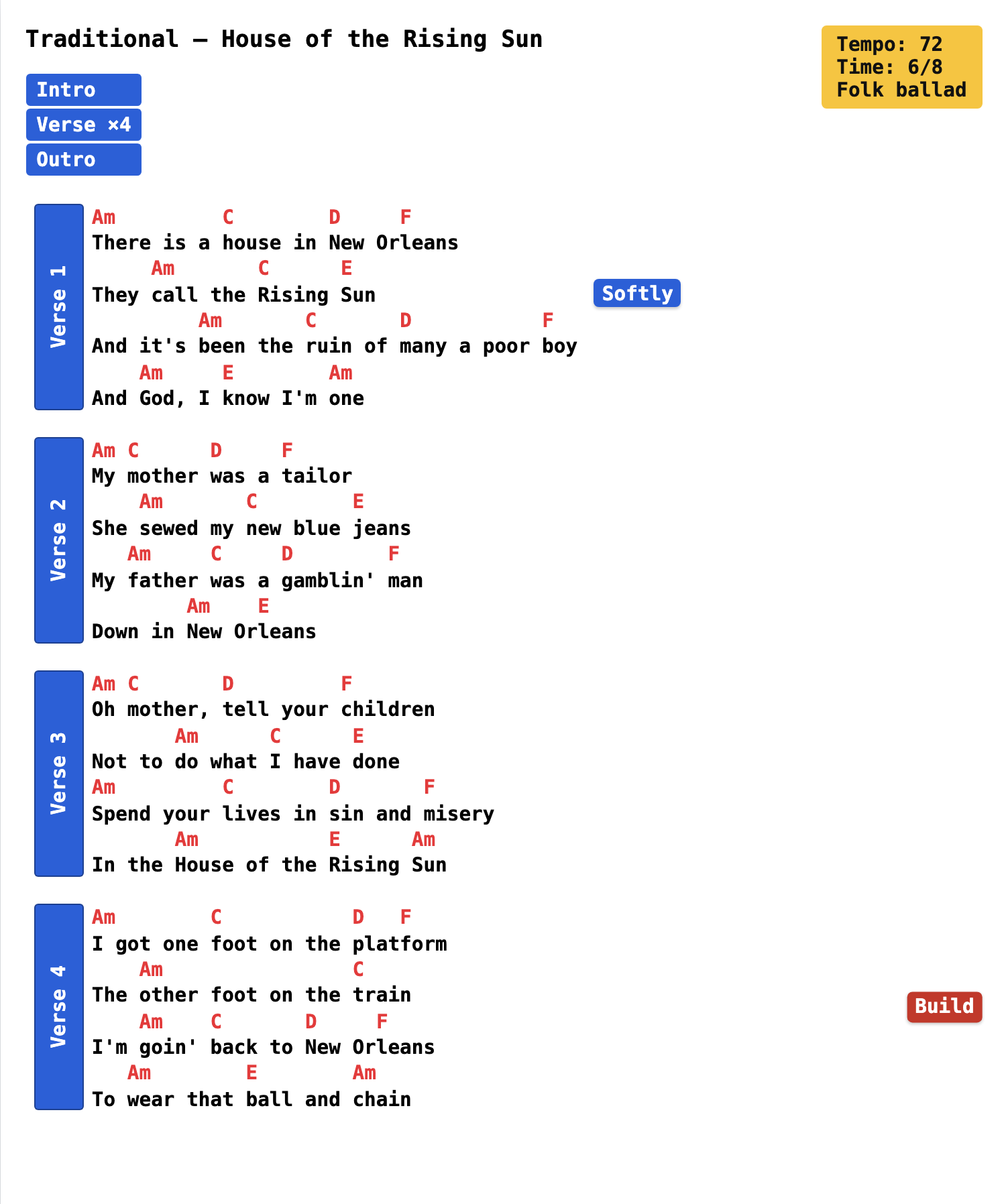
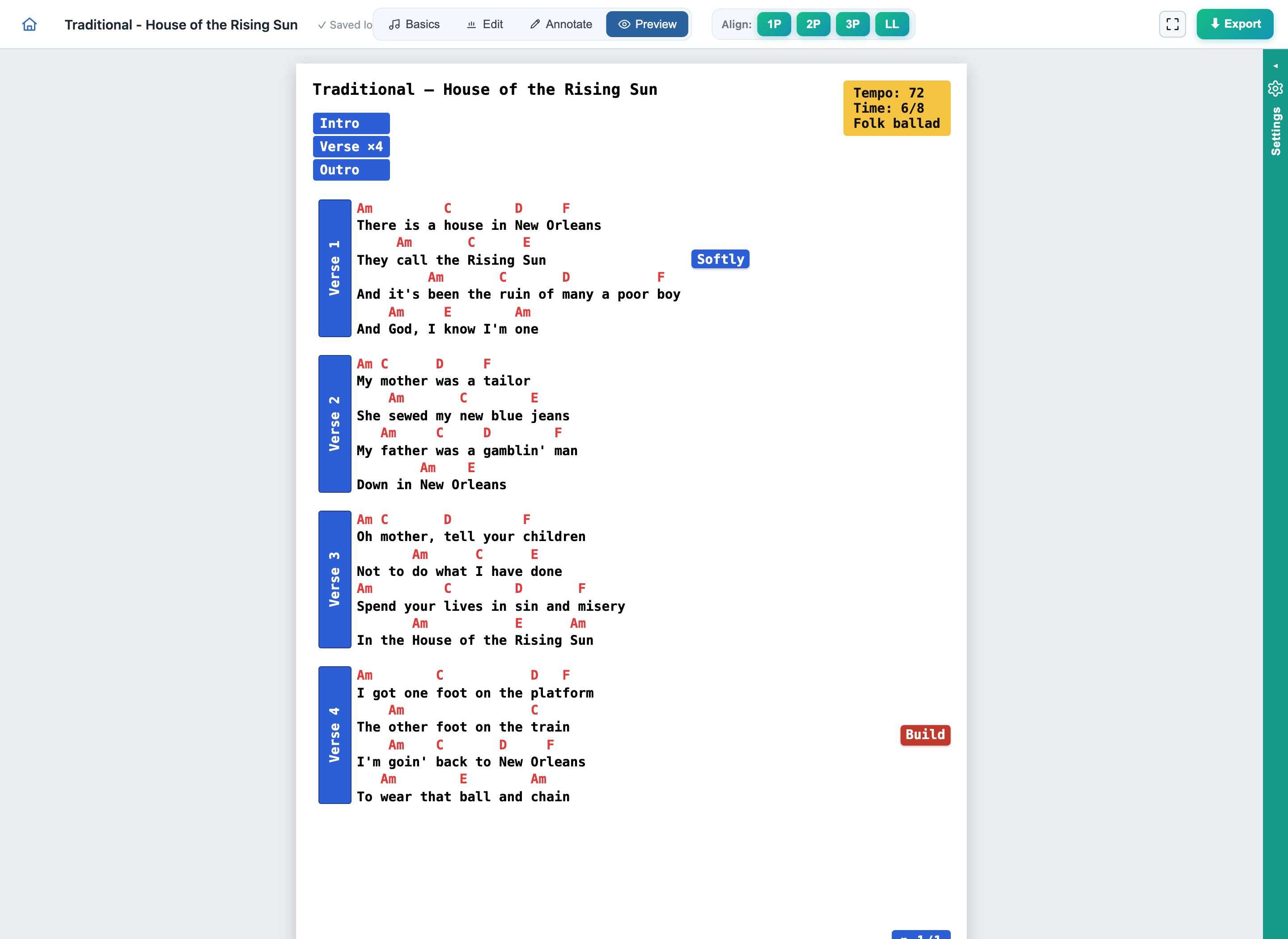
Here's the finished chart. By the end you'll have made this: clean chords over lyrics, labeled sections, a couple of performance cues, a compact arrangement road-map, a consistent color theme, and a one-page PDF ready for the stand or a tablet.
1 · Start a new song
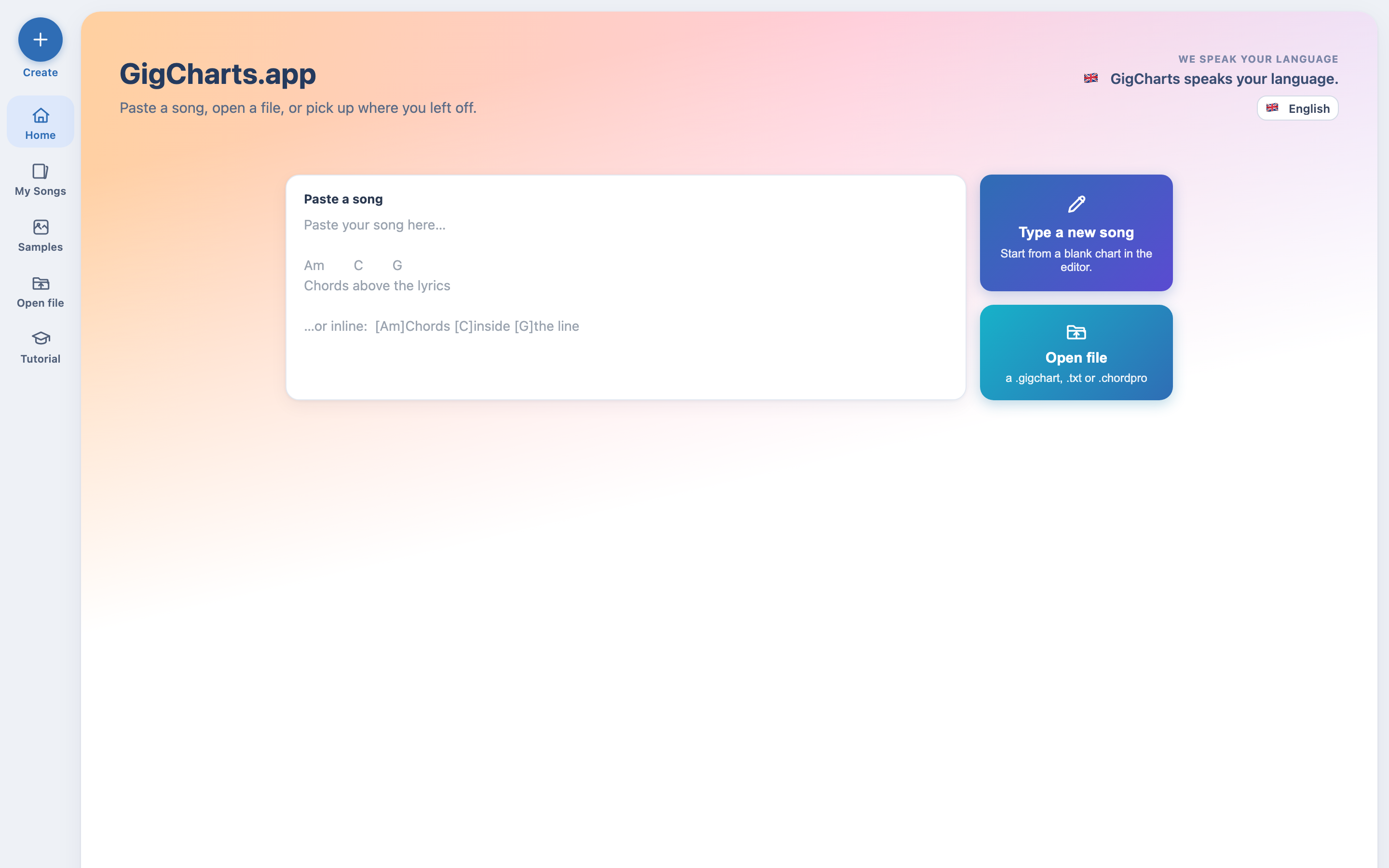
Press Create at the top of the left-hand rail. The
New song dialog gives you three ways in: paste a song
into the box, Type a new song to start from a blank chart,
or Open file for a .gigchart, .txt
or .chordpro you already have. Any of them drops you into the
studio with a live preview of the printed page — everything you type shows
up formatted, instantly.
2 · Paste the words & chords
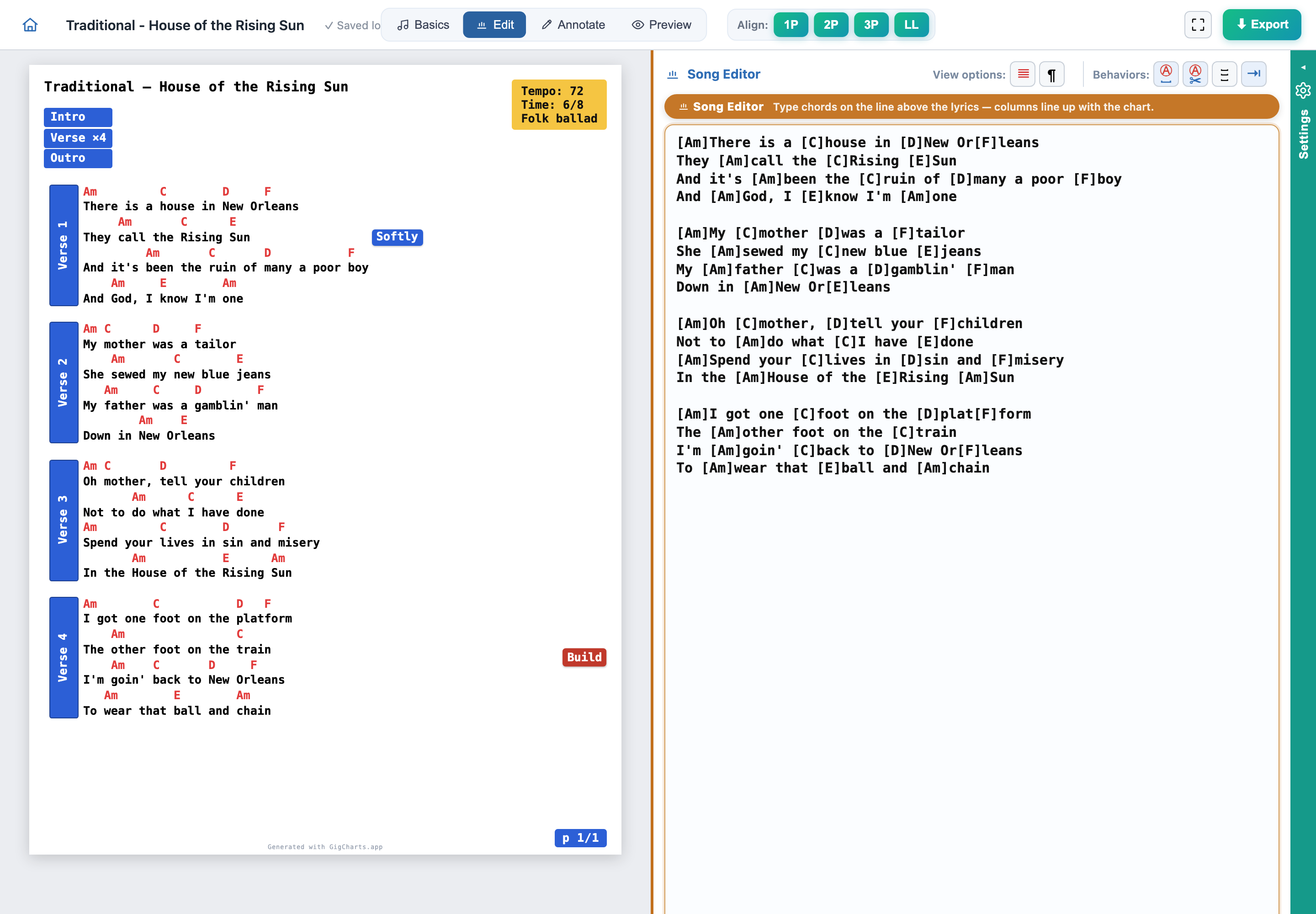
Edit mode is the Song Editor: a wide monospace pane beside the live preview, whose columns line up with the chart. GigCharts understands the two common ways to write chords, so use whichever you have. This guide uses the inline style — chords in square brackets, right where they land in the words:
[Am]There is a [C]house in [D]New Or-[F]leans
They [Am]call the [C]Rising [E]Sun
And it's [Am]been the [C]ruin of [D]many a poor [F]boy
And [Am]God, I [E]know I'm [Am]one
As you paste, the preview lines the chords up over the right syllables. A blank line between verses becomes a break between stanzas.
3 · Title, key & capo
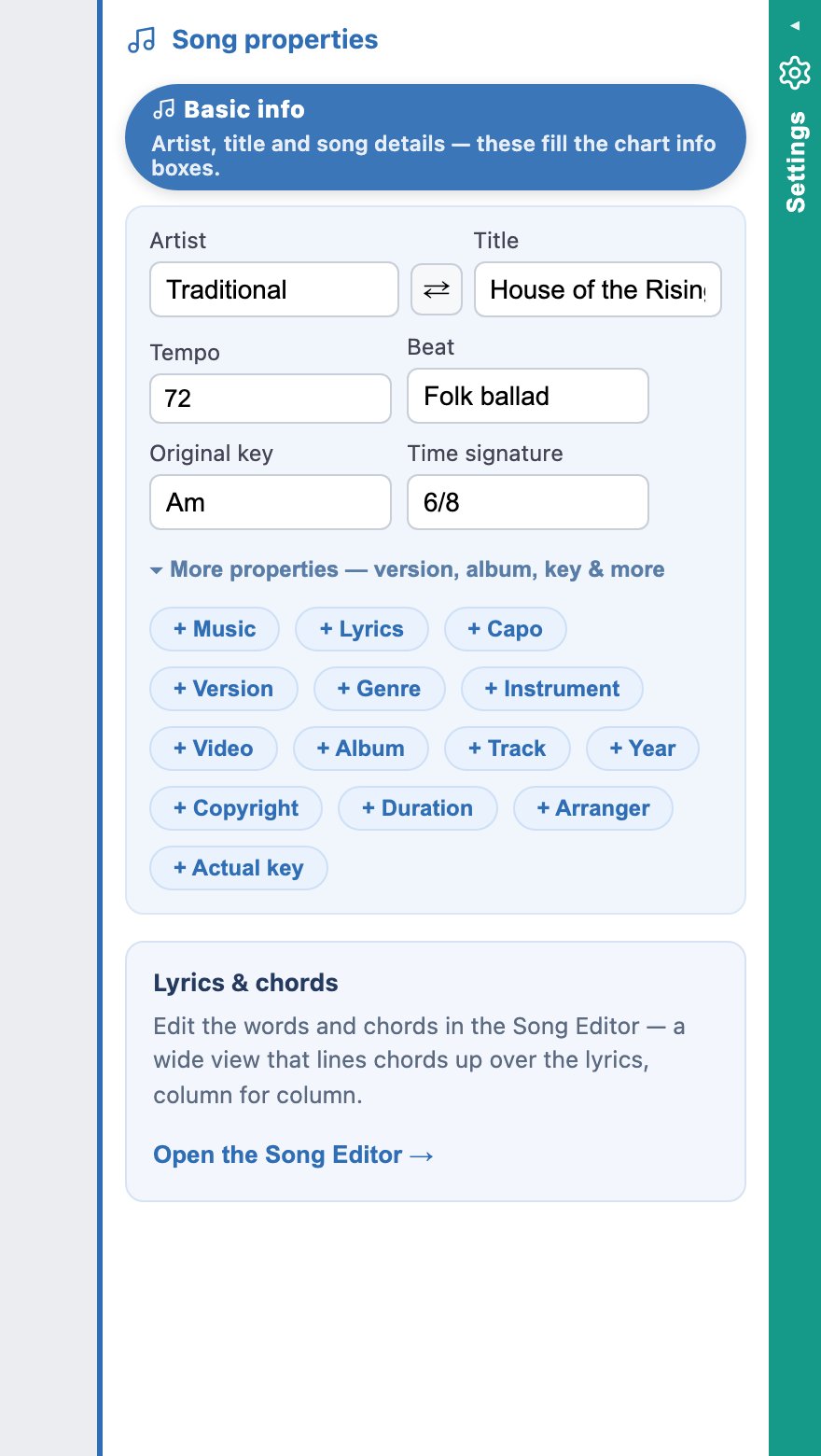
Switch to Basics — the song's properties. Give it a title and an artist, and state its key so it reads clearly at the top of the chart. House of the Rising Sun sits nicely in A minor. If your player uses a capo, set the position here too — GigCharts keeps the capo and the printed chord shapes honest, and shows a clear capo badge in the header.
Everything else on this list is optional and none of it prints unless you ask it to: tempo, time signature, beat, album, arranger, genre, instrument, language, licence, year. They're proper fields rather than free text, so the info box can pick any of them up, and several carry a small lookup button that fills them in from MusicBrainz. Show / select at the top of the panel decides which of them appear on the page.
4 · Mark the sections
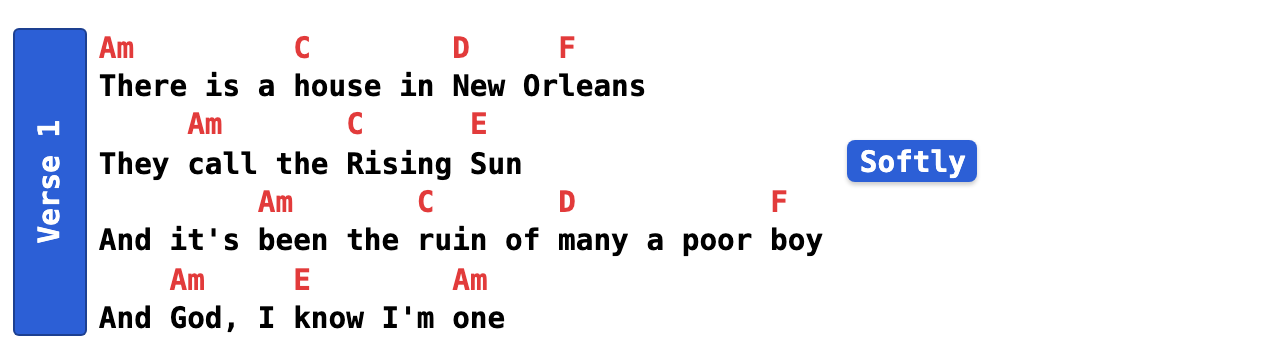
Now give the song some bones. Open Advanced mode — the full annotation canvas, where every performance mark lives. Right-click a stanza (or press A) and add a Section spine: mark the opening as Verse 1 and the following stanzas as their own verses. Each gets a colored spine and a label down the side, so the form of the song is obvious at a glance. Give recurring parts the same color and they'll always look the same across the page.
In a hurry? The Annotations panel on the right has a Detect sections button that reads the song's structure and labels every unlabelled stanza for you — Verse, Chorus, Bridge. Anything it gets wrong you can rename or delete, and the whole thing undoes in one step.
5 · Transpose to fit the singer
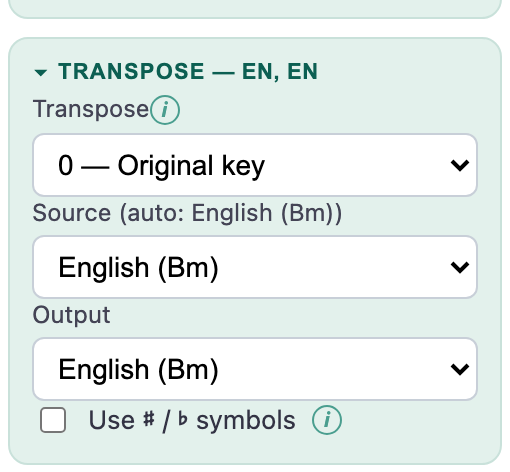
Say your singer wants it a step higher. Click the transpose chip in the top bar — the one showing the detected key and the current shift. It moves every chord up or down by semitones at once; the words never move. Nudge it up a couple of semitones and the whole chart follows, and the key statement updates with it.
Transpose is a lens, not an edit: the song keeps its written chords, and you can put it back to zero at any time. If you decide the new key is the song, Apply transpose to chords in the same panel writes it into the source and resets the dial. The panel also holds the notation controls — read the chart as English, German or Hungarian, and print accidentals as ♯ and ♭ if the font has them.
6 · Add performance cues
A chord chart says what to play; cues say how. Still in Advanced mode, drop a small chip where you need it — pin a Softly cue beside the quiet verse and a Build cue where the song lifts. Cues are the most flexible element: put them above a line, beside the text, or hard out in the margin, and they'll never run off the edge.
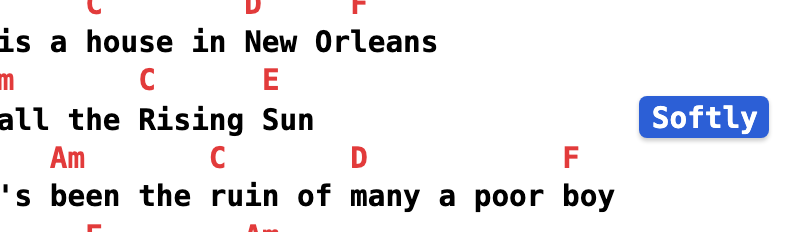
A cue can say anything — which is exactly why it's worth knowing when not to use one. See How to annotate your chart for the whole set side by side, and the mistake each one attracts.
7 · Lay out the road-map
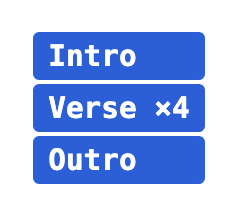
Give the band the shape of the whole song in one glance. The road-map is a compact stack of colored bars — one per part — in the order you actually play them: Intro · Verse ×4 · Outro. Color the bars to match your sections and it becomes an instant 'what comes next'.
8 · Pick a color theme
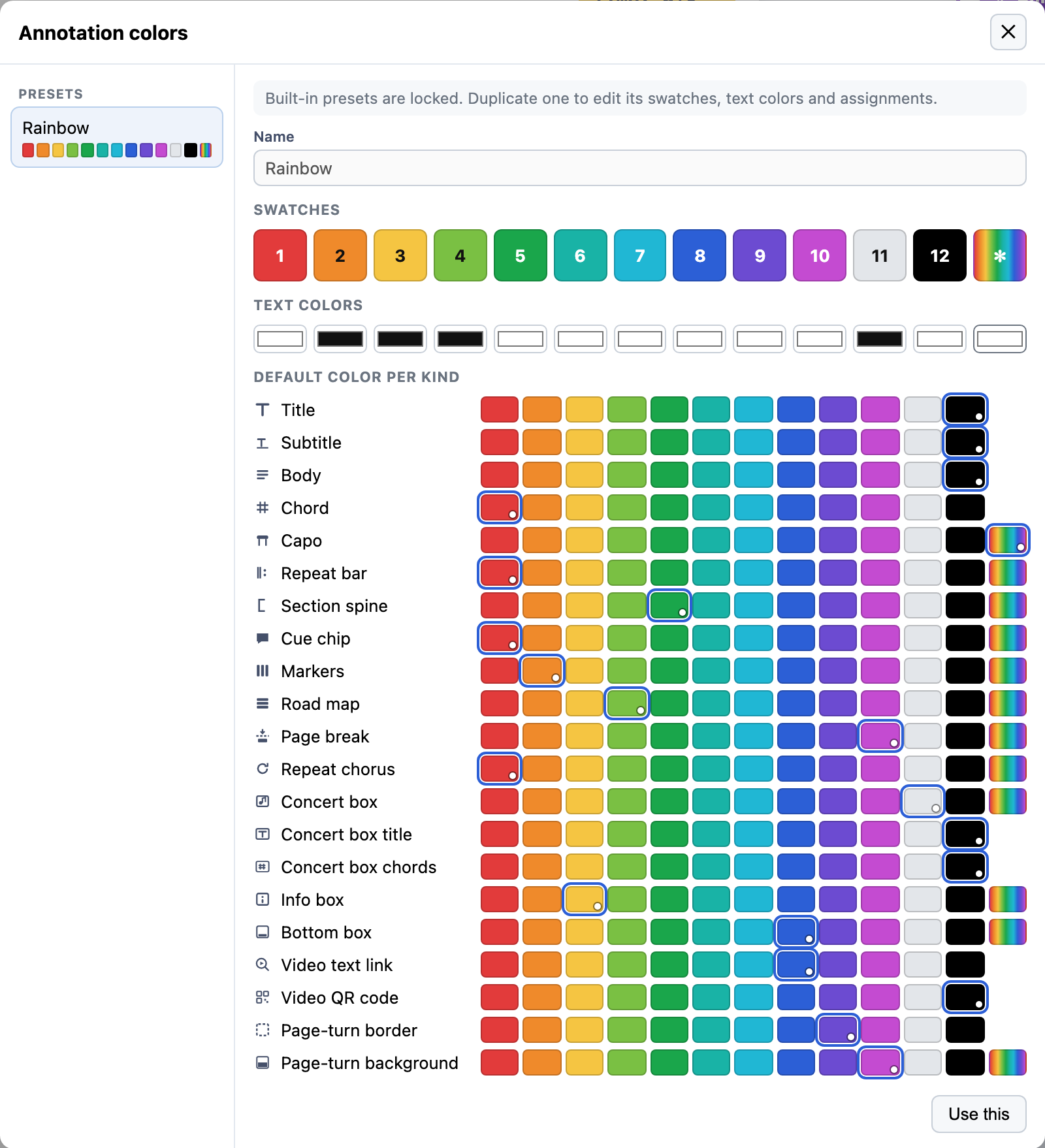
In the Annotations panel, open Colors → Manage annotation colors…. A palette is twenty numbered swatches plus an assignment for every element that takes a color — title, body, chords, capo, cue chip fill and border, concert box, info box and the rest. Change the palette and the whole chart is recolored at once, so this song matches the rest of your book.
Rainbow is the palette every chart starts with. Pastel, Muted and Grayscale come with an account — signing in is free. Each song remembers the palette it was built with, so it looks the same wherever you open it.
9 · Fit the page & the turn
Pick your paper at the bottom right — Letter, A4, or a tablet-friendly size — and GigCharts fits the song to it, paginating so a line that matters never gets split. Then use Align in the top bar: press 1P and the type is sized to fill exactly one page, 2P for two, or LL to fit the longest line to the width. Press it again to lock it, and the chart keeps re-fitting itself as you edit.
If the song runs past one page, the page-turn preview shows the start of the next page at the bottom of this one, so a reader knows what's coming and turns on the right beat. When the automatic split lands somewhere awkward, drop a page break and decide the turn yourself.
10 · Export the PDF
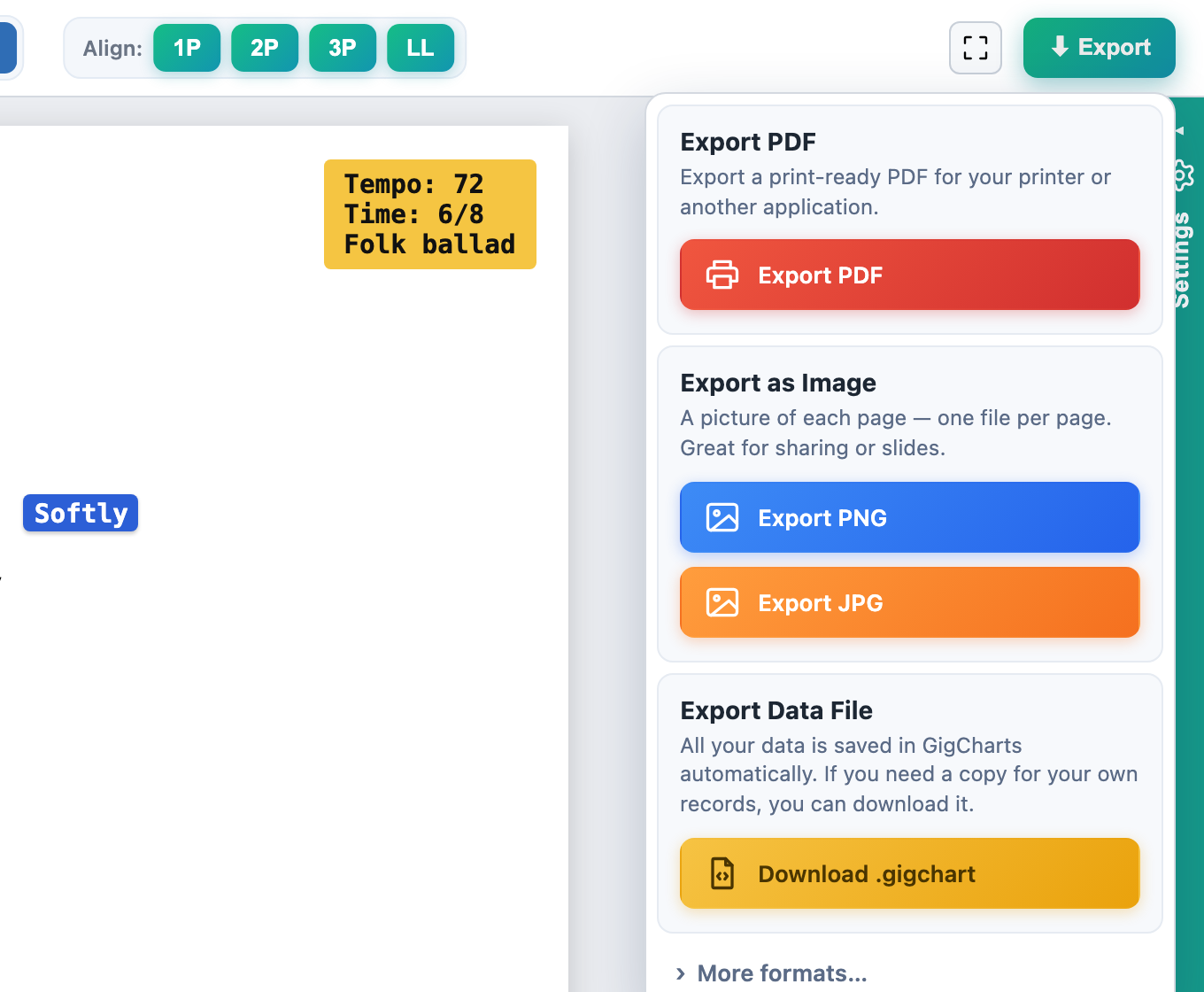
Last step: the Export button, top-right. Export PDF gives you a print-perfect PDF that matches the preview exactly — built right in your browser, nothing uploaded. It opens in any PDF reader and in the tablet apps musicians use (forScore, OnSong, MobileSheets). Print it for the binder, or drop it into your set-list app. PDF export is free, on every plan, with no page limit.
The same menu will hand you a PNG or JPG of
each page for a slide or a message, the song's own
.gigchart file if you want a copy for your
records, and under More formats… plain text or ChordPro —
both of which GigCharts can read back in.
The guide, as a song
Everything above also exists as charts — made in GigCharts, about GigCharts. The tutorial repeats the same three verses of House of the Rising Sun on eight pages, adding one layer per page — sections, cues, repeats, voices, emphasis, capo, the road-map — with an explanation box at the bottom of each page saying what changed. The showcase puts every marking GigCharts has onto four pages of Swing Low, Sweet Chariot. Three shorter ones each take a single feature and show it working.
- Tutorial — one step per page, from paste to PDF ·
view the PDF ·
open it in the app ·
download the
.gigchart - Showcase — every annotation type on one song ·
view the PDF ·
open it in the app ·
download the
.gigchart - Page turns — the page-turn preview, page by page ·
view the PDF ·
open it in the app ·
download the
.gigchart - Concert chords — sounding chords in a box beside the music ·
view the PDF ·
open it in the app ·
download the
.gigchart - Capo — the printed capo band and the sounding pitch ·
view the PDF ·
open it in the app ·
download the
.gigchart
All five live on the app's Samples page under Tutorials, alongside finished charts of a dozen traditional songs. Opening one gives you the whole studio on a copy that is saved nowhere — take it apart, change anything, and press Save to My Songs only if you want to keep it. It's the fastest way to see how any of the markings were made.
Where to go next
That's a full chart, start to finish. You've met sections, cues, transpose, the road-map, palettes, page fitting and export — the things you'll reach for on almost every song. To go deeper, browse the element reference: it covers every element on its own, including voices (color lines by singer), repeats and repeat sections, chord boxes, text boxes, concert chords for the players who aren't capo'd, QR codes, the info box and the stamp along the bottom.
Once you have a few charts, Setlists put them in order for a particular night — transpose a song for that gig without touching the original, and play the whole set fullscreen. That part is free.